

Web Design
From Slow to Sub-Second: Achieving Good Core Web Vitals Scores on Wix Studio
7 min read

Did you know that a 1-second delay in mobile load time can impact conversion rates by up to 20%? If a site feels sluggish, visitors don’t wait around. They swipe back, close the tab, or bail mid-scroll.
Google sees that behaviour, too, and it affects how a website performs in search. That’s why Core Web Vitals (CWV) matter so much. They measure how users actually experience your page loading, interactivity, and visual stability.
For businesses built on Wix Studio, understanding and improving these scores is key to competitive advantage. Below is a practical, Wix Studio–focused guide that provides hands-on strategies to move your site from acceptable speeds to industry-leading performance.
Understanding Core Web Vitals
Before jumping into fixes, it helps to understand the three metrics Google cares about most:
- LCP (Largest Contentful Paint): It measures the time it takes for the largest image, video, or block of text to become visible within the viewport. This is the primary perceived loading speed. Good Target: 2.5 seconds or faster.
- INP (Interaction to Next Paint): This metric measures how quickly the page responds when someone taps, clicks, or interacts. Sticky scripts, bloated code, and unoptimised elements slow this down. Good Target: 200 milliseconds or less.
- CLS (Cumulative Layout Shift): It measures unexpected movement of page elements while the page is loading. A high CLS score leads to frustrating user experiences, like accidentally clicking the wrong button. Good Target: 0.1 or less.
Getting these three stable puts you on the right track. On Wix Studio, the challenge is balancing design flexibility with performance discipline. A visually rich site can still hit strong numbers if it’s structured thoughtfully.
1. Start with LCP: Your Hero Section Determines Almost Everything
If you fix nothing else, fix LCP. It’s usually responsible for half the performance issues on Wix Studio sites. Remember, the probability of a visitor bouncing increases 32% as page load time goes from 1 second to 3 seconds. This shows exactly why Core Web Vitals are so important.
A few very specific (and very effective) adjustments you can try:
- Pick the right hero format.Large videos, auto-playing animations, or overly wide galleries delay the main render. A static hero image almost always loads faster, especially when compressed properly.
- Use the correct image size.A surprising number of Studio sites load 4,000 px images for mobile screens that display at 390 px. Resize assets before uploading. Wix compression helps, but clean input files perform better.
- Convert hero videos into background images.If a brand insists on motion, export a few frames as a still image for the first load. The motion can fade in after the page stabilises.
- Avoid third-party scripts at the top of the page.Chat widgets, analytics plugins, or marketing pop-ups that load early delay everything behind them. Move them down the queue.
A well-optimised hero can shave off half a second instantly. That’s often the difference between “pass” and “needs improvement.”
2. Keep Layouts Predictable to Stabilise CLS
Is Core Web Vitals a ranking factor? Yes, stability and speed are key factors in Google’s algorithm.
CLS punishes messy layouts. Wix Studio gives plenty of creative freedom, and that freedom can lead to shifting headers, unpredictable padding, or misaligned elements when breakpoints aren’t handled carefully.
Here’s what stabilises everything:
- Set Fixed Dimensions on Elements: Always set clear width and height attributes (or aspect ratios) for all images and galleries. If Wix knows how much space an element needs before it loads, the surrounding layout doesn’t jump.
- Lock Down Your Text Components: Longer headlines or dynamic content can push elements around. Create containers that accommodate text variability without forcing other sections to shift.
- Avoid Collapsing Sections: Elements that suddenly expand or shrink when scripts fire create shifts. Build sections with enough room to breathe or use the built-in Wix Studio layout tools to ensure proper spacing.
- Limit “Floating” Elements: Animations that reposition elements during load look nice, but Google counts them as instability. Keep them minimal above the fold.
A stable layout isn’t always a “standard” or “safe” design—it’s simply predictable, which is exactly what Google rewards.
3. Trim Interactions and Scripts to Improve INP
INP is the newer Core Web Vitals metric, and it is the one that many sites struggle with the most. Wix Studio offers custom code blocks, scroll effects, interactions, and app integrations—all of which can create input delay.
Some ways to fix this:
- Clean up Custom Code: Unnecessary event listeners, bloated JavaScript functions, or scripts firing on every scroll tick slow things down. If a script doesn’t need to run immediately, delay it using Velo.
- Reduce Heavy Scroll Interactions: Zoom-ins, parallax movements, or dramatic fades often involve additional script calculations. Keep them minimal, especially on pages that require user input (like product pages).
- Don’t Overload Your Site with Apps: Every app adds its own scripts. Some add multiple. If you’re using several different lead-gen tools, consolidate them or look for lighter alternatives.
- Use Wix Native Features: Native form builders, CMS filters, animations, and pop-ups tend to be lighter than third-party alternatives.
Improved INP makes a site feel snappier immediately—buttons respond faster, menus open smoothly, and checkout interactions feel clean instead of sticky.
4. Treat Images Like Performance Landmines
Images are responsible for the majority of bloat on Wix sites. Even when Wix auto-compresses files, oversized or incorrectly formatted media slows everything down.
Follow these Core Web Vitals best practices for image handling:
- Resize Before UploadReduce image dimensions before you upload them to the Wix Studio media manager. Aim for: • Hero images: ~2000–2400 px • Full-width sections: ~1500–1800 px • Product images: ~1200 px • Thumbnails: ~400–800 px
- Use Modern Formats: Use JPG for photos, WebP where supported, and PNG only when necessary for transparency.
- Compress Aggressively: Most images look identical at 70–80% quality but load much faster. Use external compression tools to push file size down.
- Lazy-Load Everything Below the Fold: Wix does this automatically in most cases, but confirm your settings. This frees up bandwidth for the LCP element.
A site with smart image handling often hits green Core Web Vitals scores even before deeper optimisation begins.
5. Reduce Heavy Apps and External Integrations
Apps are convenient, but performance usually suffers when too many run simultaneously. The goal is to minimise external script calls during the initial page load.
These tend to cause the most delays:
- Chat widgets
- Review platforms
- External booking systems
- Heatmap trackers
- Form builders
- Loyalty programs
As mentioned, whenever possible, switch to Wix’s native features (Wix Chat, Wix Forms, Wix Bookings, etc.). Native tools are lighter, faster, and designed to sit comfortably with Wix Studio’s architecture. If a feature truly requires a third-party platform, use Velo to defer the load to the bottom of the page, where it won’t interfere with core rendering.
6. Streamline Your Fonts

This is a small tweak with a big impact on LCP and visual stability (CLS). Fonts must load before text can be displayed, often causing delays or layout shifts (Flash of Unstyled Text).
- Use Two Font Families Maximum: Each family adds file requests. Keep things tight.
- Stick to Common Weights: Regular, medium, and bold are usually enough. Loading seven different font weights slows down the first render.
- Choose System Fonts When Speed Matters Most: System fonts load instantly and can dramatically improve your First Contentful Paint.
Wix Studio supports variable fonts, too—one file that handles multiple weights. These are often lighter than loading several separate files.
7. Structure Pages with Clean, Intentional Sections
Google rewards clean architecture and low DOM (Document Object Model) size. A cluttered page takes longer for the browser to parse and slows down interactivity.
This is how to structure sections on Wix Studio in a performance-friendly way:
- Keep Your First Section Simple: Minimal scripts, no heavy animations, no video. Focus only on conversion.
- Split Long Pages: Some websites cram everything onto one endless scroll. Breaking content into smaller, more intentional pages reduces the initial load time dramatically.
- Use Repeaters: Use repeaters instead of manually duplicating elements like cards or product listings. Repeaters share code and load lighter.
- Use Velo’s Lazy Loading for Repeaters: For very long lists, load repeater items incrementally as the user scrolls, rather than loading all items at once.
A well-structured page almost always scores higher on Core Web Vitals because it is inherently faster for the browser to process.
8. Use Wix Studio’s Built-In Performance Tool
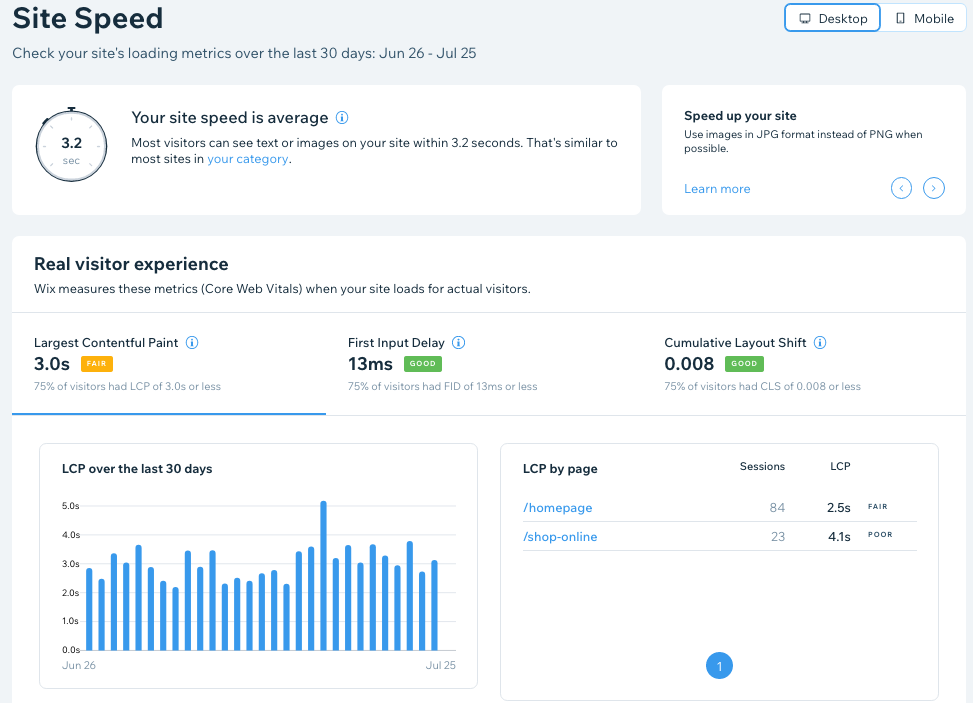
Wix Studio now includes performance-oriented tools that provide direct insights into your CWV bottlenecks. Make use of them regularly:
- Review the Performance Dashboard: Use this to get an internal look at which components or scripts are adding the most load.
- Preload Key Assets: Define rules to tell the browser to download the essential LCP image and necessary fonts before the rest of the page starts loading.
- Audit Unused Code: Look for and remove any custom Velo code or old libraries that no longer contribute to the site’s functionality.
- Reduce DOM Size: The dashboard often flags high DOM size. Simplify your element nesting to make the HTML structure cleaner and faster for the browser to render.
9. Test Often—and Test Across Real Devices
Sub-second performance comes from iteration. You must test your site as your customer experiences it.
- Run Google PageSpeed Insights (PSI): Prioritise the mobile score. A fast desktop score doesn’t guarantee a speedy mobile experience, especially since Australian users often browse on older devices or patchy connections.
- Use WebPageTest: This tool allows you to simulate load times across different device types, geographies, and connection speeds (e.g., simulating 4G connections).
- Monitor Field Data: Once your site is live, prioritise the field data (real user data) in PSI over the lab data. This tells you if your changes truly improved the experience for your visitors.
Testing across 4G, 5G, and Wi-Fi helps paint a realistic picture of real-world performance.
When It’s Time to Bring in a Specialist
Some sites hit a ceiling no matter how many quick fixes are made. This usually happens when:
- The site has been touched by many designers.
- Large amounts of old code remain unused.
- Animations conflict with one another.
- Multiple apps run simultaneously.
- The structure is too heavy at the root level.
So, if you’ve implemented the steps above and still find your Wix Studio site struggling to hit those green CWV targets, you need specialised attention. A professional usually handles these types of rebuilds by refactoring sections, compressing the media library, rewriting interactions, and rebuilding the hero from scratch.
A site doesn’t always need a full redesign; it often needs thoughtful re-engineering.
Go Sub-Second with Volt Agency
Don’t wait for website performance to cost you sales.
Volt Agency offers precise, technical optimisation designed to fine-tune every aspect of your site’s performance. We can help fine-tune LCP, resolve INP issues, and eliminate CLS, ensuring your site is built for sustained success.
Ready to lead the pack? Schedule your comprehensive Core Web Vitals audit with Volt Agency today.


