

Web Design
Fluid Typography: How to Ensure Your Headlines Look Perfect on Every Screen Size
4 min read

There is a specific kind of frustration that hits when you realise your website looks like a masterpiece on your laptop but a cluttered mess on a client’s tablet. You’ve nailed the branding, the imagery is sharp, and the copy is punchy—yet, for some reason, one of the website’s headlines is suddenly taking up half the screen or shrinking into a tiny, unreadable line.
It’s what happens when a design’s intent gets lost between different screen sizes. In an era of high-performance web design, your site needs to do more than just fit on a screen; it also needs to adapt intelligently.
If your website is on Wix Studio, you aren’t stuck with text that behaves unpredictably. You actually have three distinct technical paths to handle how your words scale. Understanding the difference between Fixed, Fluid, and Scale Proportionally is the secret to moving past “good enough” and ensuring your headlines look perfect on every device.
Fixed: The Anchor
Fixed typography is the most straightforward setting, but it’s also the least forgiving. When you set a font to 40px, it stays 40px. Period. It doesn’t care if the visitor is using a 32-inch monitor or a handheld smartphone.
While this gives you total control over the exact pixel size, it’s the primary culprit behind the weird-looking tablet layouts customers often complain about. On a smaller screen, a fixed headline might wrap into four awkward lines or bleed off the edge of the page. To fix it, you have to adjust the size for every single breakpoint. It’s a manual labour approach in a world built for automation.
Scale Proportionally: The Visual Mirror
When you set text to Scale Proportionally, the font size grows and shrinks in direct relation to the width of its container.
Think of it like a reflection in a mirror: as the mirror gets smaller, the reflection stays perfectly in proportion to the frame. This is fantastic for keeping your layout exactly as you intended. However, math doesn’t always account for human eyesight. If you scale down too far—moving from a wide desktop to a narrow tablet—the text can become microscopically small. It’s a powerful tool for responsive text size, but it requires a safety net to remain functional.
Fluid: The Modern Standard
If you want responsive typography at its most sophisticated level, the Fluid setting is the answer. Rather than shrinking blindly like the scaling model, fluid typography operates within a defined territory.
On Wix Studio, the Fluid setting allows you to set a minimum and maximum font size. As the screen size fluctuates, the text flows smoothly between those two points. It essentially creates a safety zone for your words. It’s the ultimate strategy for typography in web design because it treats your headlines like living elements that know when to stop growing and when to stop shrinking. This ensures your fluid display font looks intentional and high-end, providing a seamless experience that keeps users focused on your message rather than their pinch-to-zoom gesture.
Quick Tips to Change Fonts on Wix Studio Like a Pro
- Anchor your H1s: Use Fluid typography for your main hero headlines. This is your loudest brand statement—don’t let a small screen muffle it.
- Be Mindful of Navigation Links: Utilise the Fixed setting. You want your menu to be a reliable UI element. If the font size is constantly shifting, users might experience misclicks or find the navigation distracting.
- Scale Captions & Legal Text: Choose to Scale Proportionally. Small details just need to stay in their lane. Scaling them ensures they remain aesthetically tucked away regardless of the screen width.
- Perform the Accordion Test: Don’t just rely on the mobile icon in the editor. Grab the edge of your browser and slowly shrink the window. Watch how the text reacts in the “in-between” stages to ensure there’s no awkward overlapping.
- Keep Body Text Grounded: For long paragraphs, the Fixed setting or a very narrow Fluid range is often better. You want to maintain a consistent reading rhythm, and huge swings in paragraph font size can make a blog post feel disjointed.
Troubleshooting: When Fluid Goes Wrong
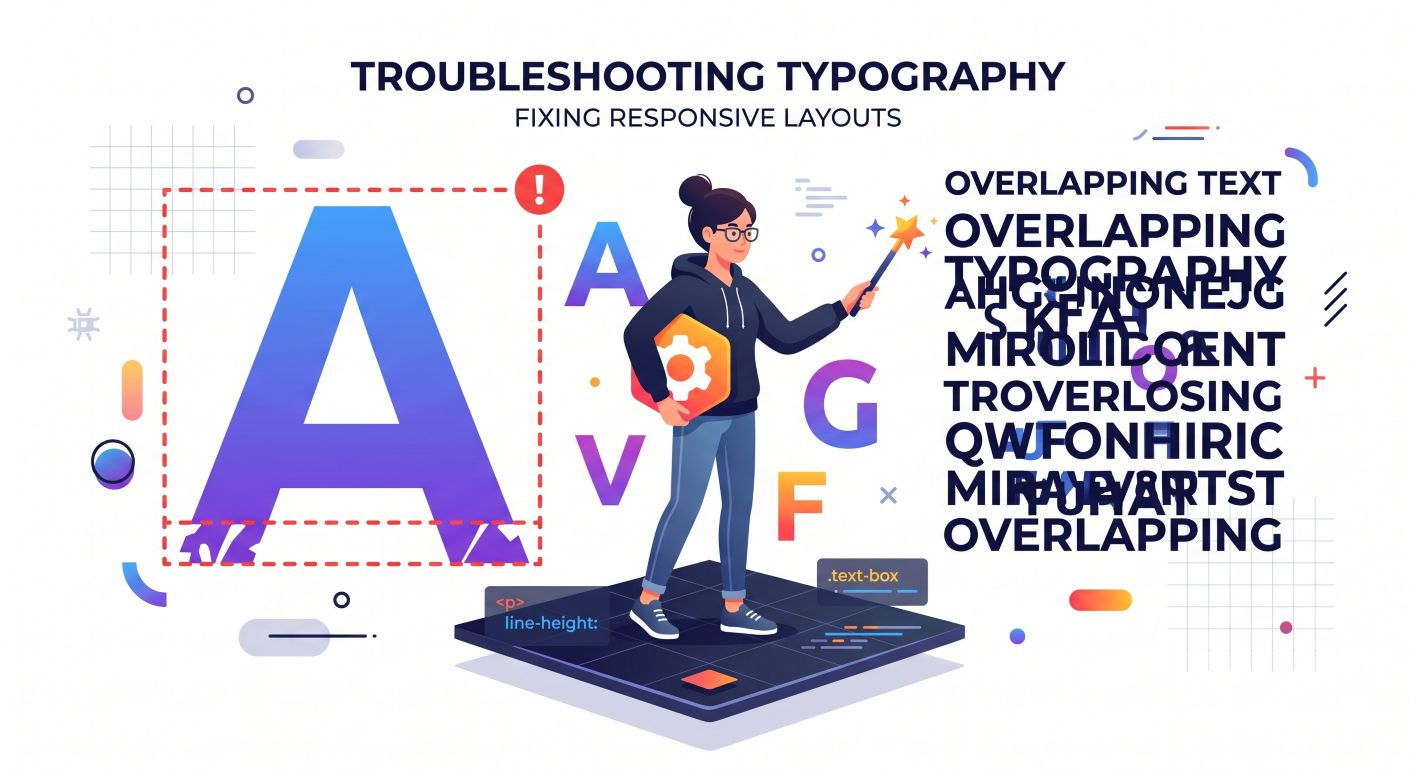
Even with the best tools, the digital space can be unpredictable. Here are the three most common text-gone-wrong scenarios and how to fix them:
Container Overflow
The Problem: Your Fluid text looks great, but suddenly the bottom half of the letters is cut off, or the text disappears entirely on certain screens.
The Fix: This usually isn’t a font issue; it’s a container issue. Check your text box settings. If the container height is Fixed while the text is Fluid, the text might outgrow its box. Set your container height to Auto or Max-Content to let the box breathe along with the typography.
Line Height Issues
The Problem: As the font scales d
own, the lines of text start crashing into each other, making your paragraph look like a single block of ink.
The Fix: Line height (or leading) is often set in pixels by default. To make it truly responsive, use Unitless or Percentage values (like 1.5 or 150%). This ensures that as the font size shrinks, the space between the lines shrinks proportionally, maintaining readability.
Performance Drag
The Problem: The page loads, and for a split second, the text is huge before it snaps into its fluid size.
The Fix: This is known as a Cumulative Layout Shift (CLS), and it hurts your SEO. Ensure you’ve set your Minimum and Maximum Fluid values clearly in the Inspector panel. This tells the browser exactly how much space to reserve for that text before the page even finishes rendering.
Why the Technical Choice Matters
The importance of typography in web design goes beyond just looking pretty. Your website is a tool designed to drive action. When a headline is perfectly legible and aesthetically balanced, it builds a subconscious sense of trust. If the text feels broken or off, that friction can be enough to make a potential lead bounce.
Using responsive design for the text isn’t about chasing the latest web design trends. It is all about professional-grade execution. It’s the difference between a site that looks like a template and one that feels like a custom-engineered digital experience.
At Volt Agency, we prioritise these technical details because they are what separate a standard website from a high-performance asset. Mastering fluid typography is a simple shift that yields massive results in how your brand is perceived across the digital landscape.
Contact us today to learn more.


